6 Google Business Profile fixes for fishing charters
Your Google Business Profile might be sending your bookings to FishingBooker. Here are the six fixes we make on almost every charter profile we clean up, with the steps.

Nick Brisson
Co-founder, Sales & Client Success ·
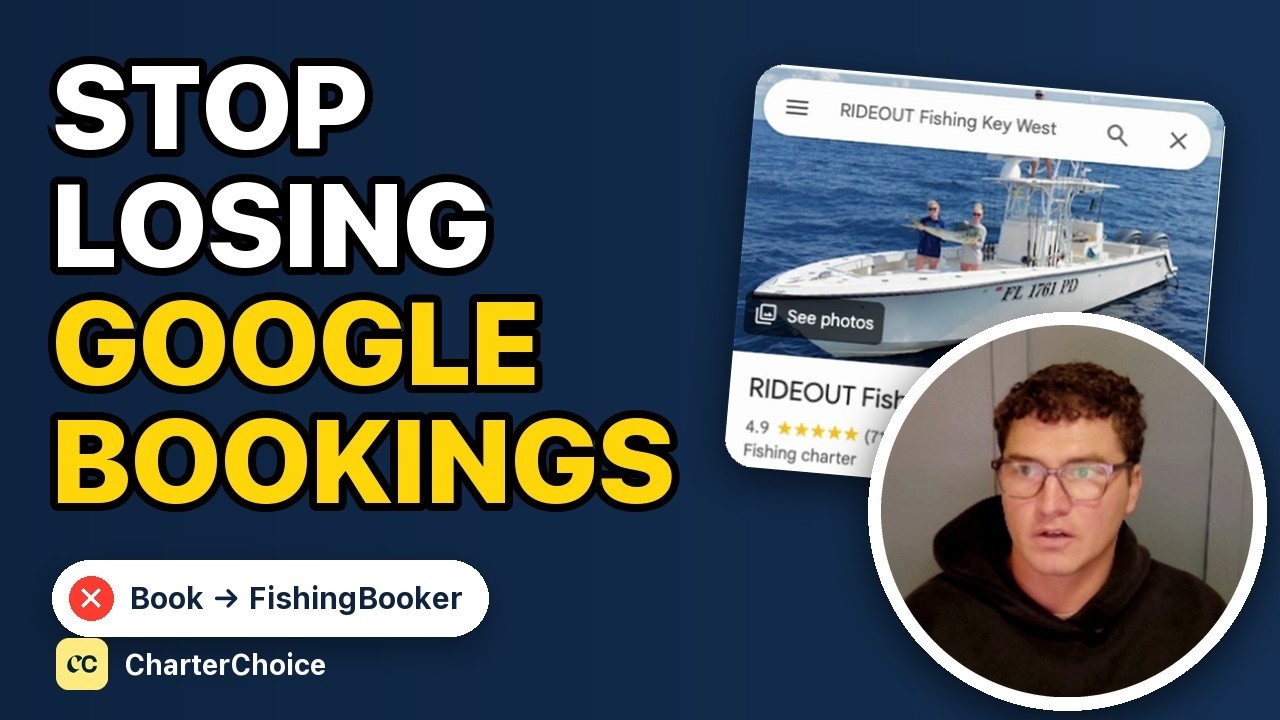
Your Google Business Profile might be sending your bookings to FishingBooker.
We just finished a full review of a client’s profile, so I jumped on camera and went through it. These are the six fixes we make on almost every charter profile we clean up. The video above takes about three minutes, and the steps are below.
To make any of these changes, sign in to the Google account that manages your profile, then go to your Business Profile. Google moves its buttons around, so the names below may not match yours exactly.
1. Use a clear cover photo
Your cover photo should be a clean shot of people fishing or holding a fish. The one we put on this client’s profile shows off the boat, the fish and the people on the boat.
Sometimes we see photos up there that just don’t make sense. I saw one with five dudes and no fish, or at least none you could see. You didn’t get it right away.
To change yours, open your photos and choose Add a cover photo or Change cover. Google says this doesn’t guarantee your photo shows first, and that it may use someone else’s photo if yours is low quality, so use a sharp one.
2. Send booking links to your own website
I can’t stress this one enough. One of the biggest things I see is trips, listed under Activities on the profile, that go to FishingBooker.
FishingBooker then takes that trip from you and charges you a commission or fees. Or worse, someone ends up on FishingBooker because of you, starts looking around and books another charter, when they would have booked with you if you’d sent them to your website.
So only have your official site in there, and send guests right into the booking flow for the exact trip they tapped. If they tapped the afternoon half day, they should land on the afternoon half day.

Here’s how, from Google’s help page on business links:
Open your booking links
On Google Search, open your profile and select Booking. On Google Maps, select Edit profile, then Booking.
Add your own link
Select Add link, or Add another link if one is already there. Enter your booking page’s address, not your homepage, and select Save.
Make yours the preferred link
Select Set preferred link, choose yours and select Save. Google shows it at the top of your links as “Business preferred.”
Ask the other provider to remove theirs
Select Remove Provider. Google says providers need to remove third-party links within 5 days of a removal request, and if one doesn’t, you can report a violation.
You can stay listed on FishingBooker. It still brings you anglers who’ve never heard of you. This is about the ones who already searched your name.
If you’re on FareHarbor, Google Things to Do puts your own booking link on your profile with an Official site label.
3. Fill out the whole profile, and watch for suggested edits
Another thing I see is captains not filling out the entire profile, or worse, someone else filling it out for them. Fill in everything: hours, phone, website, categories, description and trips. Google says businesses with complete and accurate info are more likely to show up in local search results.
People can suggest edits to your profile. On this client’s profile, someone was trying to add a second phone number, and Google picked up on it. I don’t know if they were confused or if it was malicious. Either way, you always want to go in and double-check that your phone number is correct.
When Google tells you about a suggested edit, you have 4 days to accept or reject it. If you don’t respond, Google may publish it anyway when other public information supports it. Changes made by Google show in blue in your profile editor.
Four days goes fast in the middle of the season. Open those notifications when they come in, and look over your profile once a week.
4. Add more photos
Make sure there are always enough photos on your profile. 20, 30, 40, 50 good photos really helps.
Select Photos, then Add photos. Google says your newest ones appear first, so adding a few each month keeps your latest catches up top, and they can take 24 to 48 hours to show.
Shoot what a guest wants to see before they book: the boat, the deck, the captain and crew, guests with their catch, and the dock where they’ll meet you.
5. Keep collecting reviews
Reviews are one of the biggest and best ways to get on the first page of Google and move up, especially on Google Maps when someone searches your area.
Google says local results come down to relevance, distance and prominence, and that more reviews and positive ratings can help your local ranking. You can’t change how far a guest is from your dock. You can add reviews every week. Here’s how to ask for them and what to send.
6. Post on your profile
This one’s small, but we do it. Your profile has a little post section, and Google wants you to use all of its features. It shows you’re on top of it and you know what you’re doing.
Select Posts, then Add post, and choose Update, Offer or Event. Keep it simple: a photo of this week’s catch, what’s biting, or dates you still have open. Google archives posts after six months unless you set a date range, so add a new one every so often.
Want us to do it for you?
If you need help with your Google Business Profile, we offer a one-time cleanup. We go through everything that needs to be looked over, fix it and upgrade it.
Your profile is only half of it. Once a guest taps through, your website has to work, and here’s what we found on 109 Keys charter websites.
Want to talk it through? Book a call.